


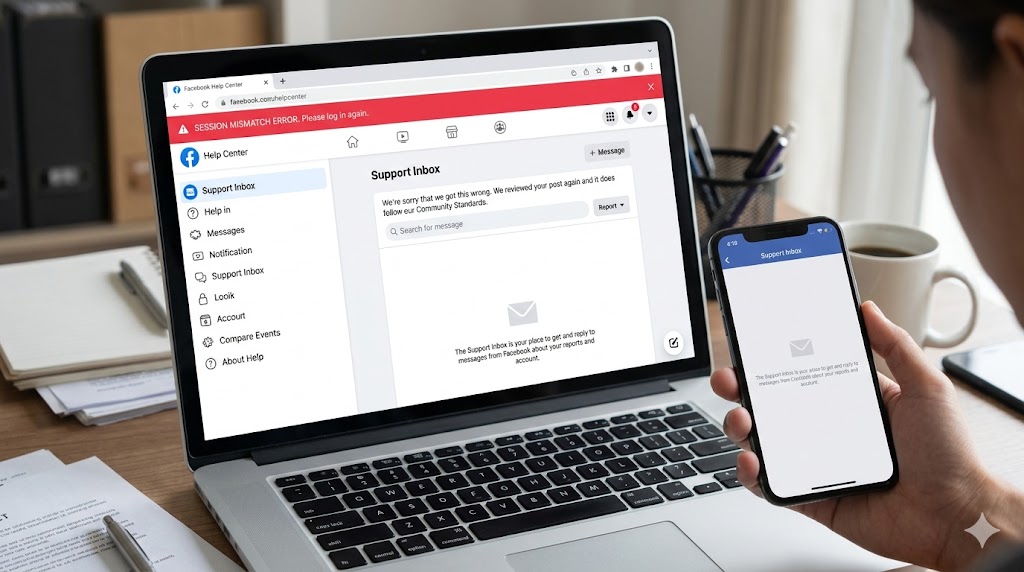
If your Facebook Support Inbox is suddenly empty, showing no cases, no replies, no “ongoing support requests,” or it looks like you never contacted support at all, the most common cause is not that Facebook deleted your history, it’s a Help Center session mismatch, meaning you are viewing the Support Inbox while the system is authenticated as the wrong identity, wrong account, wrong business context, or a stale browser session that is not the same session that created the support ticket in the first place. 😅
Support Inbox is very sensitive to session context because Meta support threads are tied to the exact account and sometimes to a business portfolio context. If you created a ticket while logged into one account, then later you open Support Inbox while logged into another, the inbox can look completely empty even though the case still exists. The confusion gets worse if you use multiple profiles, manage multiple businesses, switch between personal and Page identities, or use different devices that hold different login sessions. The inbox is not “globally empty,” it is empty for the identity the system currently believes you are. 🙂
Definitions 🧠
Support Inbox is the place where Meta surfaces responses and updates to your help requests, and it is tied to your active login state. Meta’s help content often routes support flows through in-app channels and specific support surfaces, which reinforces the idea that support threads are scoped to the logged-in identity and not always visible across every surface automatically.
Help Center session is the authentication context your browser uses when accessing help and support pages. If cookies, storage, or identity switching breaks that context, your help pages may behave as if you are logged out, partially logged in, or logged into a different account than you think.
Session mismatch means one of these is true:
- You are logged into the wrong Facebook account in the browser.
- You created the ticket on mobile but are viewing Support Inbox on desktop with a different account logged in.
- You are inside a different business portfolio context than the one that owns the asset linked to the case.
- Your browser is blocking or auto-clearing cookies, so the Help Center cannot persist the correct session.
- An extension or privacy setting prevents the support surface from reading the correct login state.
This is why “empty inbox” is often a session problem first and a “support lost my ticket” problem last.
Why Important? 😩📌
When Support Inbox looks empty, you lose continuity. You can’t see the case number, you can’t reply, you can’t track deadlines, and you may submit duplicate requests, which often slows resolution because multiple cases for the same issue create confusion in the support system. Also, if you are handling ads, business assets, or security incidents, missing the support thread can cost real time and money.
Here’s a metaphor that makes it clear: think of Support Inbox like a locked mailbox 📬. The mail exists, but you only see it when you use the correct key. A session mismatch is simply using the wrong key, not the mail disappearing.
How to Apply ✅🛠️
The goal is to prove which identity created the ticket, then force your Help Center session to match that identity, then stabilize the session so it doesn’t keep flipping.
Step 1: Identify which account actually created the ticket 🔎🙂
This is the single most important step. Ask yourself honestly: did you submit the support request from Facebook app, Instagram app, Business Suite, or desktop? Did you switch accounts recently? If you have multiple Facebook accounts or profiles, assume the ticket is tied to one specific identity. If you received an email confirmation or in-app notification about the case, the destination it links to is often tied to the identity that created it, which is a strong hint.
Step 2: Do a clean login check in one tab only 🧠
Log out of Facebook in that browser, then log back into the exact account you believe created the ticket, and then open Support Inbox again in the same tab, not in a new one. Avoid multiple tabs because one tab can keep stale session state and overwrite the other, creating a tug-of-war that looks like “inbox keeps empty.”
Step 3: Use a private window as the fastest A/B proof 🪟✅
Open a private window, log into the suspected correct account, then open Support Inbox. If the cases appear in private mode but not in your normal browser session, you have proven the issue is local session persistence, usually extensions, blocked cookies, or cached state.
Step 4: Disable the most common session-breaking extensions for Meta help surfaces 🧩🚫
If private mode works, disable or whitelist for Meta domains any extension that:
- Blocks scripts (script blockers)
- Blocks tracking aggressively (privacy blockers)
- Automatically clears cookies on exit
- Strips URL parameters or forces redirects (URL cleaners)
Then reload Support Inbox. Support surfaces often rely on embedded modules and redirects, and partial blocking can make the page behave like a logged-out view even when you are logged in.
Step 5: Clear only Meta help site data, not your whole browser 🧹🙂
If the support surface is stuck in a bad state, clear site data for the relevant Meta domains only, then log in again. This resets the Help Center session. Keep it surgical so you don’t wipe unrelated sessions you care about.
Step 6: Confirm business context if the ticket is tied to a business asset 🏢
If the support case was created through Business Suite, an ad account, or a business portfolio, your support inbox visibility can depend on being in the correct business context. If you manage multiple businesses, switch to the business that owns the ad account or Page linked to the issue, then check again.
Step 7: If you created the ticket in-app, check in-app support surfaces 📱
Some support threads are easier to access from the same channel that created them. If you created it via mobile app support flows, open the app and navigate back to the support section there, because the app session can be cleaner and more consistent than a desktop browser with extensions.
Table 📊
| What you see | Most likely cause | Fast proof | Best fix |
|---|---|---|---|
| Support Inbox shows zero cases | Wrong account session | Private window with correct account shows cases | Log in with correct account, one tab only |
| Inbox empty only on desktop | Extensions or cookie policies | Mobile app shows cases | Whitelist Meta help domains, clear site data |
| Cases visible on one device but not another | Different logged-in identities | Compare which account is logged in | Align accounts and re-authenticate |
| Business-related case missing | Wrong business portfolio context | Switch business context and retry | Use correct business portfolio for the asset |
| Inbox loads but looks like logged-out view | Help Center session not persisting | Incognito works, normal fails | Disable cookie auto-clear, allow storage |
Diagram 🧩
Support request created (Account A, possibly Business X)
|
v
Support thread stored under that identity and context
|
v
You open Support Inbox
|
+--> If session is Account A + Business X -> cases appear ✅
|
+--> If session is Account B or stale -> inbox appears empty 😵💫
Examples 😄
Example 1: Ticket created on mobile, inbox checked on desktop
You created the ticket while logged into your personal account on the Facebook app, then on desktop you were logged into a secondary account you use for testing, so Support Inbox is empty. Fix: log into the same account that created the ticket, then check again.
Example 2: Ticket created in Business Suite under Business A, inbox checked under Business B
You manage multiple businesses and the support thread is tied to an ad account in Business A. You open support while viewing Business B, and it looks empty. Fix: switch business context, then reload.
Example 3: Works in private window, not in normal session
This is nearly always a cookie or extension issue. Fix: whitelist Meta domains in privacy tools and stop auto-clearing cookies for Meta help surfaces, then reload.
Anecdote ☕😂
I have seen someone submit the same support request three times because their Support Inbox looked empty, and they assumed the first request never existed, but the real issue was that they created the ticket on a different account in the mobile app, and their desktop browser was logged into a work account, so the inbox was “truthfully empty” for that identity. Once they logged into the correct account, all three duplicate cases appeared at once, and the reaction was equal parts relief and annoyance, because nothing was missing, they were just looking through the wrong session keyhole 😅💛.
Personal Experience 🙂
When support surfaces look empty, I do a strict sequence: private window test first, then confirm account identity, then confirm business context, and only after those do I clear site data, because clearing without knowing the identity can make you lose the one consistent session that would have shown the case. This approach prevents the most common mistake: turning a session mismatch into a bigger login mess.
Emotional Connection 💛
An empty Support Inbox can feel like you are being ignored, especially when you already did the hard part of submitting the request. The good news is that most of the time the case still exists, and the emptiness is simply a session mismatch. Once you align the account and context, your history usually “reappears” instantly, and that relief is huge because it restores your sense of continuity and control.
10 Niche FAQs 🤓✅
1) Can my Support Inbox be empty because my case was closed?
Closed cases should usually still be visible, so a totally empty inbox is more often a session or identity mismatch.
2) Why do I see support emails but no cases in the inbox?
Because the emails may be tied to a different account than the one you’re currently logged into on the Help Center.
3) Does switching between Page and profile affect Support Inbox?
Yes, identity switching can change context and confuse session state, especially with multiple tabs open.
4) Can browser privacy settings hide support cases?
They can, if cookies or storage are blocked and the Help Center cannot persist your authenticated session.
5) Why does it show cases on mobile but not on desktop?
Desktop extensions and cached state cause session mismatch more often; the app session is usually cleaner.
6) What is the fastest way to confirm it’s not deleted?
Private window login to the suspected correct account, then check the inbox.
7) Could I be in the wrong business context?
Yes, business-linked cases can be scoped to a business portfolio or asset ownership context.
8) Should I submit a new ticket if inbox is empty?
Only after you confirm the correct account and context, otherwise you risk duplicates.
9) Why does the inbox look logged out even when I’m logged in on Facebook?
Because Help Center can be running under a different session cookie state than the main site if storage is blocked or stale.
10) What is the most surgical fix if it’s stuck?
Clear site data only for Meta help and Facebook domains, then re-login to the correct account.
People Also Asked 🔎🙂
1) Is Support Inbox the same as Meta Verified support chat?
No, Meta Verified chat is an in-app module, while Support Inbox is a Help Center thread view, and they can behave differently.
2) Why do support threads appear in one app but not another?
Because the ticket may be tied to the channel that created it or to the account identity that created it.
3) Can multiple Facebook accounts on one browser cause empty support?
Yes, multi-account sessions are a classic cause of mismatched Help Center context.
4) What if I truly cannot find the case anywhere?
Use any confirmation email or notification to identify the correct account, then re-check in a private session, then only after that submit again.
5) How can I prevent this in the future?
Use a dedicated browser profile for Meta support and business tools, keep extensions minimal, and avoid multi-account logins in the same profile.

