

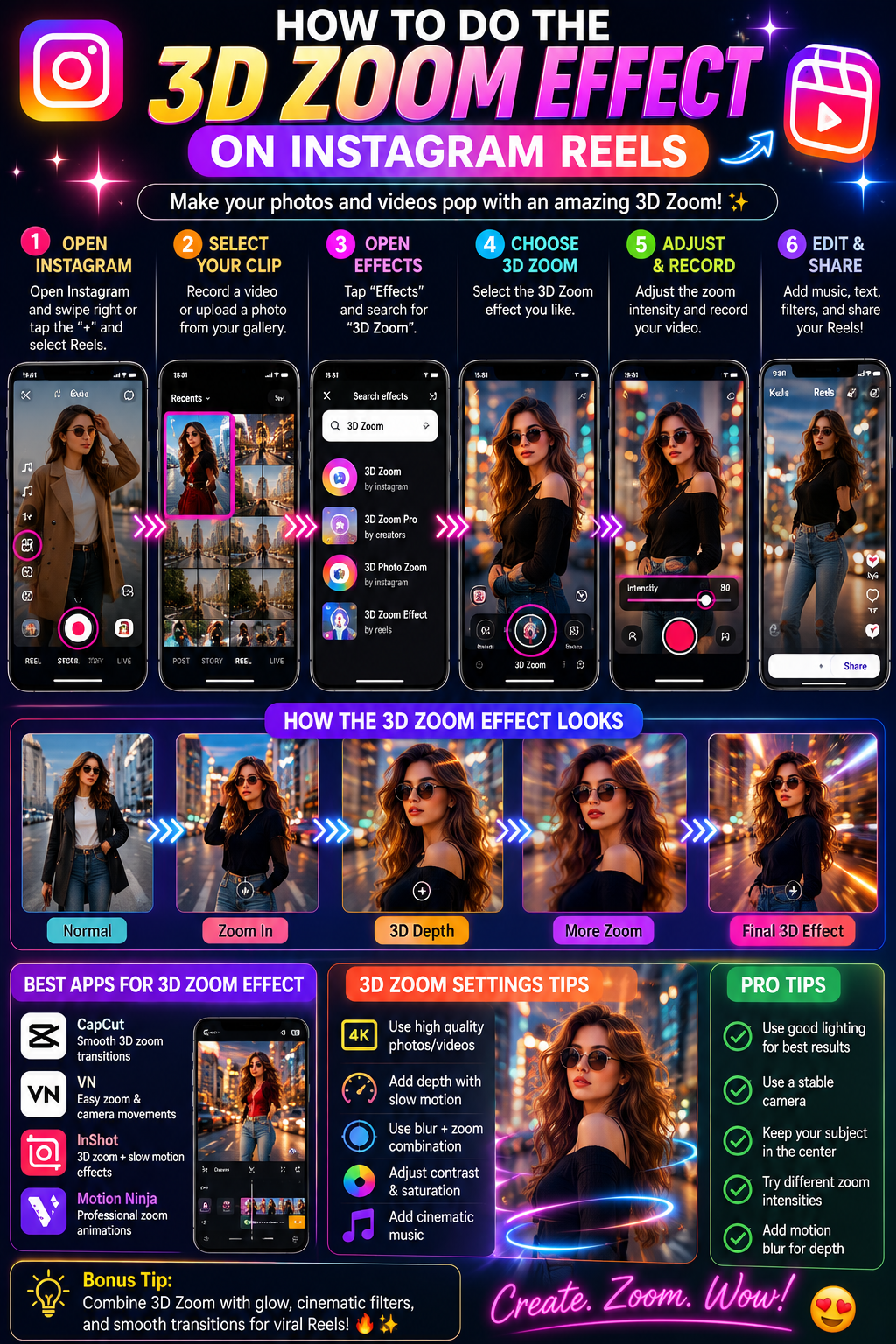
The 3D Zoom effect on Instagram is a photo or video animation that creates the illusion of depth by making the foreground subject and background move at different speeds. Instead of simply enlarging the entire image like an ordinary digital zoom, a convincing 3D Zoom can make the person, product, vehicle, building, or object appear separated from the background, almost as though the camera were physically moving through the scene.
This style is frequently used in Instagram Reels, photo montage videos, travel edits, fashion transformations, product presentations, automotive content, wedding posts, real estate videos, and nostalgic photo collections. A creator might begin with a still portrait, slowly push the virtual camera toward the subject, move the background in the opposite direction, and then transition into another photograph on a musical beat. The result feels more dynamic than an ordinary slideshow because the photograph appears to contain movement and dimensional space. 📱
Instagram does not guarantee a permanent native effect called 3D Zoom for every account. The effects and editing controls shown in Instagram can vary according to region, device, application version, and feature rollout. The most reliable current methods are to search Instagram’s available effects, create a controlled zoom in the Reels editor, use keyframes in Meta’s Edits app, or produce a more advanced depth animation with a dedicated editor and upload the finished video to Instagram.
Instagram explains that creators can record Reels and add photographs, clips, music, effects, and voiceovers through the Reels workflow. You can review the basic tools in Instagram’s official Reels guide. Meta’s Edits application provides more precise motion control through keyframes, effects, layers, transitions, and timeline editing, making it especially useful for building a manual 3D Zoom animation.
Definitions 🧠
3D Zoom effect: A motion effect that creates the impression of camera movement and depth within a photograph or video. The subject may appear to move independently from the background.
Parallax effect: The visual phenomenon in which foreground and background elements move at different speeds. Nearby objects appear to move more quickly than distant objects, helping the viewer perceive depth.
Keyframe: A marker that defines the position, scale, rotation, or appearance of an element at a particular moment. The editing application creates movement between two or more keyframes.
Digital zoom: A basic enlargement of the complete image. Unlike a true parallax style effect, an ordinary digital zoom does not separate the subject from the background.
Depth map: A digital representation that estimates which areas of an image are closer to or farther from the camera. Some AI based 3D effects use depth estimation to separate visual layers automatically.
Ken Burns effect: A slow pan and zoom applied to a still photograph. It creates movement but normally does not separate the foreground from the background.
Masking: The process of isolating part of an image, such as a person or product, so it can be moved, resized, or edited independently.
Overlay: A second visual layer placed above the main photograph or video. Overlays are useful when the subject and background need separate movement.
Why the 3D Zoom Effect Is Popular 🎯
The 3D Zoom effect makes static photographs feel alive. Instead of asking viewers to look at an unmoving picture, the animation guides their attention toward the subject and creates the sensation that the camera is entering the scene. This movement can make an old photograph, portrait, product image, or travel picture feel more emotional and immersive.
The effect is particularly useful for creators who have strong photographs but limited video footage. A fashion page can animate campaign images, a hotel can turn room photographs into a short tour, a restaurant can create movement from food photography, and a family account can transform childhood photographs into a nostalgic Reel.
The technique works like a miniature theatre stage. The foreground subject resembles an actor standing near the audience, while the background becomes the scenery behind that actor. Moving the layers at different speeds creates the illusion that the flat image contains real space. 🎭
How to Apply the 3D Zoom Effect 🛠️
Method 1: Search Instagram’s Current Effects 🔎
Instagram may display Meta developed effects that imitate zooming, camera movement, depth, or photographic animation. The available selection can change, so begin by checking your current Reels and Stories camera.
1. Open Instagram and tap the plus button.
2. Choose Reel or Story.
3. Open the camera and tap the Effects icon.
4. Use the available search function and try several related phrases:
- 3D Zoom
- Photo Zoom
- Depth Zoom
- Parallax
- 3D Photo
- Dynamic Photo
- Camera Zoom
- Photo Motion
- Portrait Zoom
- Depth Effect
5. Preview any relevant option before recording or importing your photograph.
6. Check whether the effect requires a live face, a photograph, several images, or a specific camera movement.
7. Record a short test and review the final result before building the complete Reel.
If you cannot find a suitable effect, your account may not currently offer a native 3D Zoom option. This does not necessarily indicate a technical problem. Continue with the Edits or external editor methods below.
Method 2: Create a Simple Zoom with Instagram Reels 📱
A basic zoom does not create full foreground separation, but it can reproduce part of the visual style without leaving Instagram.
1. Open Instagram and create a new Reel.
2. Add a high resolution portrait or photograph from your camera roll.
3. Adjust the image duration in the timeline.
4. Use any available crop, scale, animation, or zoom control in your current Reels editor.
5. Begin with the full image visible.
6. Gradually enlarge the image so the movement ends on the main subject.
7. Keep the zoom slow and controlled rather than rapidly enlarging the photograph.
8. Add a second photograph and reverse the direction of the next movement to create visual variety.
9. Synchronize the strongest zoom or image change with the music.
Instagram’s official Reels clip editing guide explains how recorded and uploaded clips can be managed in the Reel editing interface. The exact animation and motion controls may vary between versions.
Method 3: Create a Manual 3D Zoom with Meta’s Edits App 🎞️
Meta’s Edits app is the strongest Instagram connected option for creating a controlled zoom because it includes keyframes for adjusting motion, timing, and effects at precise points in the video. Meta describes keyframes as tools for pinpointing exact moments for changes to timing, motion, and effects in its official Edits introduction.
1. Open Edits and create a new project.
2. Import the photograph you want to animate.
3. Extend the photograph to approximately three to five seconds on the timeline.
4. Select the image layer and move the playhead to the beginning.
5. Add the first keyframe with the complete photograph visible.
6. Move the playhead toward the end of the image duration.
7. Increase the image scale and reposition the frame so the main subject becomes larger.
8. Add or confirm the second keyframe.
9. Preview the animation and reduce the amount of movement when the zoom feels too aggressive.
10. Add easing or smoother motion controls when available so the animation accelerates and decelerates naturally.
11. Add music, sound effects, text, or additional photographs.
12. Export the completed video and share it to Instagram Reels.
This creates a controlled two dimensional zoom. To produce a stronger 3D illusion, separate the subject and background into individual layers as described in the next method.
Method 4: Build a True Parallax Style Zoom with Layers 🧩
A convincing 3D Zoom requires the foreground subject and background to move independently.
1. Choose a photograph with a clearly separated subject and background.
2. Create a duplicate of the photograph.
3. Use a background removal or masking tool to isolate the subject in one copy.
4. Place the complete photograph on the bottom layer.
5. Place the isolated subject above it as an overlay.
6. Repair or extend the background behind the isolated subject when the editor provides a generative fill, clone, or background tool.
7. Add beginning and ending keyframes to the background.
8. Make the background zoom slowly.
9. Add separate keyframes to the foreground subject.
10. Make the subject zoom slightly faster or move in a subtly different direction.
11. Preview the animation and check the edges around hair, clothing, hands, and accessories.
12. Add a soft shadow or very slight blur where necessary to help the layers blend naturally.
The difference in movement creates parallax. The effect should remain subtle because extreme separation can make the subject look like a sticker floating above the background.
Method 5: Use a Dedicated 3D Zoom Template ⚡
A dedicated editor can automate the depth separation and movement. CapCut, for example, provides 3D Zoom templates and tools intended to add depth and dynamic motion to photographs and videos. You can explore the current options through CapCut’s official 3D Zoom collection.
1. Open the compatible editing application.
2. Search for 3D Zoom, 3D Photo, Parallax, or Depth Motion.
3. Select a template or effect that matches the number of photographs you want to use.
4. Import high resolution images.
5. Allow the application to analyze the foreground and background.
6. Preview the automatically generated movement.
7. Replace photographs that produce distorted faces, broken hairlines, or unnatural background movement.
8. Adjust timing and music where the template allows it.
9. Export the video vertically in a format suitable for Instagram.
10. Upload the finished file as an Instagram Reel.
Templates are fast, but they may create identical timing and motion across many creators’ videos. Customize the photo order, pacing, music, captions, and final shot so the Reel feels personal rather than completely automatic.
Method 6: Create a 3D Zoom Photo Montage 🖼️
The effect becomes especially engaging when several photographs are animated in sequence.
1. Select five to ten photographs with clear subjects.
2. Arrange them in a logical order, such as childhood to adulthood, beginning to completed project, or arrival to destination.
3. Apply a forward zoom to the first image.
4. Apply a sideways movement or reverse zoom to the second image.
5. Alternate motion directions to prevent repetition.
6. Keep each image visible long enough for viewers to understand it.
7. Place image changes on musical beats.
8. Use the strongest or most emotional photograph near the musical climax.
9. Finish with a calmer image or a return to the opening composition.
A montage should tell a visual story rather than display photographs randomly. The animation guides attention, but the photograph order creates meaning.
3D Zoom Method Comparison 📊
| Creative Goal | Recommended Method | Main Advantage | Main Limitation |
|---|---|---|---|
| Find an instant effect inside Instagram | Search current Instagram Effects | Fast and remains inside the application | A suitable effect may not be available |
| Create a basic photo zoom | Use the Instagram Reels editor | Simple and convenient | May not create true foreground separation |
| Create controlled camera movement | Use keyframes in Edits | Provides precise scale and position control | Requires manual timing |
| Create a realistic depth illusion | Separate foreground and background layers | Produces genuine parallax style motion | Requires masking and background repair |
| Create the effect quickly | Use a dedicated 3D Zoom template | Automates depth and movement | May look similar to other template videos |
| Animate a collection of photographs | Create a beat matched photo montage | Works well for stories and memories | Requires consistent photo selection and pacing |
3D Zoom Workflow Diagram 🧩
Choose a high resolution photograph
          |
          v
Decide on the required depth
          |
          +--> Basic movement
          |        |
          |        +--> Reels or Edits -> Add two keyframes -> Zoom
          |
          +--> Strong 3D parallax
          |        |
          |        +--> Isolate subject -> Create foreground layer
          |        |
          |        +--> Keep repaired background underneath
          |        |
          |        +--> Animate layers at different speeds
          |
          +--> Automatic effect
                   |
                   +--> Choose 3D Zoom template -> Import photo
          |
          v
Synchronize motion with music
          |
          v
Export vertically and publish as a Reel
How to Make the 3D Zoom Effect Look Better ✨
Choose a Photograph with Clear Depth
The best images contain an obvious foreground subject and a background located farther away. A person standing in front of a street, landscape, room, vehicle, or building usually works better than a tightly cropped face against a flat wall.
Use High Resolution Images
Zooming enlarges pixels and exposes softness. Begin with the highest quality original rather than a screenshot, compressed social media download, or photograph repeatedly sent through messaging applications.
Keep the Main Subject Away from the Edges
A subject positioned too close to the edge may be cropped during the zoom. Leave enough visual space around the head, body, product, or vehicle.
Avoid Complicated Hair and Transparent Objects
Loose hair, glass, smoke, tree branches, lace, reflections, and transparent materials can be difficult to separate cleanly. Test the mask carefully around these areas.
Use Gentle Movement
A subtle zoom creates depth, while an extreme zoom can make the animation feel artificial. Increase the scale gradually and keep the motion smooth.
Move Layers at Different Speeds
The foreground should normally move slightly faster than the background. When both layers have identical scale and movement, the result becomes an ordinary zoom rather than a parallax effect.
Check the Repaired Background
When the subject moves away from its original location, previously hidden areas of the background become visible. Inspect these regions for duplicated patterns, stretched furniture, broken architecture, or unnatural textures.
Match Motion to Music
Begin the zoom with a rising sound, complete it on a beat, or reverse the movement when the musical phrase changes. Audio gives the digital camera movement a sense of purpose.
Practical Example: 3D Zoom Portrait Reel 🎬
Imagine that you have a portrait of a person standing on a city street. The person is sharply focused while buildings and lights appear behind them. You import the photograph into Edits, extend its duration to four seconds, and duplicate the image. You remove the background from the upper copy so only the person remains, then place the complete photograph underneath it.
At the beginning of the timeline, you create keyframes for both layers. At the end, you enlarge the background slightly and move it a small distance to the left. You enlarge the person slightly more and move the foreground a small distance to the right. The opposite movement creates depth without making the layers look disconnected.
You add a subtle sound that rises as the zoom begins and place the final position on a musical beat. After checking the hair and shoulders for masking errors, you export the video vertically and upload it to Instagram Reels. The photograph now feels like a moving camera shot rather than a static portrait.
A Short Anecdote ☕
I have seen creators apply a very strong automatic 3D effect and assume that more movement would create more depth, only to produce a result where the person looked like a cardboard cutout sliding above the background. When they reduced the zoom, slowed the foreground movement, and repaired the area behind the subject, the same image immediately looked more natural. The experience demonstrated that believable depth usually comes from small differences between layers rather than dramatic movement.
Personal Workflow 🙂
For a quick Reel, I would begin with Edits and create a simple keyframed zoom because it offers more control than relying on an effect name that may not appear for every Instagram account. I would select a clear high resolution photograph, keep the movement gentle, and synchronize the final zoom position with the music.
For a more realistic result, I would duplicate the photograph, isolate the subject, repair the background, and animate the two layers separately. I would check the hair, hands, accessories, and background several times before exporting. When speed matters more than customization, I would use a dedicated 3D Zoom template, but I would still change the timing, photo order, music, and final frame so the content does not feel completely generic.
Frequently Asked Questions 🤓
1. Does Instagram have a permanent 3D Zoom button?
Instagram does not guarantee one permanent tool with that exact name for every account. Available effects and editing controls can differ by region, device, and application version.
2. Is 3D Zoom the same as ordinary zoom?
No. Ordinary zoom enlarges the complete image uniformly, while 3D Zoom attempts to create depth by moving foreground and background elements differently.
3. Can I make the effect with a single photograph?
Yes. A basic version uses keyframed scale and position, while an advanced version separates the subject and background into layers.
4. Can I create the effect directly in Instagram Reels?
You can create a basic zoom with the tools available in your Reels editor. A true parallax effect may require Edits or another editor with masking, layers, and keyframes.
5. What type of photograph works best?
Use a high resolution image with one clear subject, visible background depth, clean edges, and enough space around the subject for movement.
6. Why does the subject look like a sticker?
The foreground may be moving too quickly, the mask may have hard edges, or the background may not be repaired properly. Reduce movement and refine the layer boundaries.
7. Why does my image become blurry during the zoom?
The original photograph may have insufficient resolution or the zoom amount may be too high. Use the original image and reduce enlargement.
8. Can I use several photographs in one Reel?
Yes. Apply 3D Zoom to several images and synchronize each transition with the music to create a dynamic montage.
9. Is Edits connected to Instagram?
Yes. Edits is Meta’s video creation application designed to support Instagram creators and allows completed projects to be shared or exported.
10. What is the fastest method?
Use a ready made 3D Zoom template, import your photographs, review the result, export it vertically, and upload it to Instagram Reels.
People Also Asked 🔎
What is the difference between parallax and 3D Zoom?
Parallax describes the underlying depth illusion created by elements moving at different speeds. 3D Zoom is a popular editing style that often uses parallax to simulate camera movement.
Can Edits create a 3D Zoom effect?
Edits provides keyframes, motion adjustments, effects, and layer based editing tools that can be used to build a manual zoom or parallax style animation.
Can I animate an old family photograph?
Yes. Choose a high quality scan, keep movement gentle, and avoid excessive AI generation that changes faces or historically important details.
Should I use horizontal black bars with the effect?
They are optional. Black bars may create a film inspired frame, but they also reduce usable vertical screen space and do not improve the depth animation itself.
What content works best with 3D Zoom?
Portraits, wedding photographs, fashion campaigns, vehicles, travel scenes, products, architecture, childhood images, sports photographs, and before and after collections work particularly well.
Conclusion ✅
To create the 3D Zoom effect on Instagram, first check the current effects available in Stories or Reels, but remember that Instagram does not guarantee a permanent native effect with that exact name. For a simple version, import a high resolution photograph into Reels or Meta’s Edits app and use scale and position changes to create a smooth virtual camera movement.
For a more convincing 3D result, isolate the foreground subject, place it above a repaired background, and animate the two layers at slightly different speeds with keyframes. A dedicated 3D Zoom template can automate this process when you need a faster workflow. Whichever method you choose, use a photograph with clear depth, keep the movement restrained, protect image quality, inspect masking edges, synchronize the animation with music, and export the finished video vertically before sharing it as an Instagram Reel. 📸🔍✨

